 Calenn
Sync with Google or iCloud calendars
Calenn shows and syncs your Google and iCloud events through the standard iPhone calendar.
Calenn works with the calendars already registered on your iPhone. No account sign-up is required.
Show your Google calendar
Add your Google account as a calendar account in the iPhone Settings app
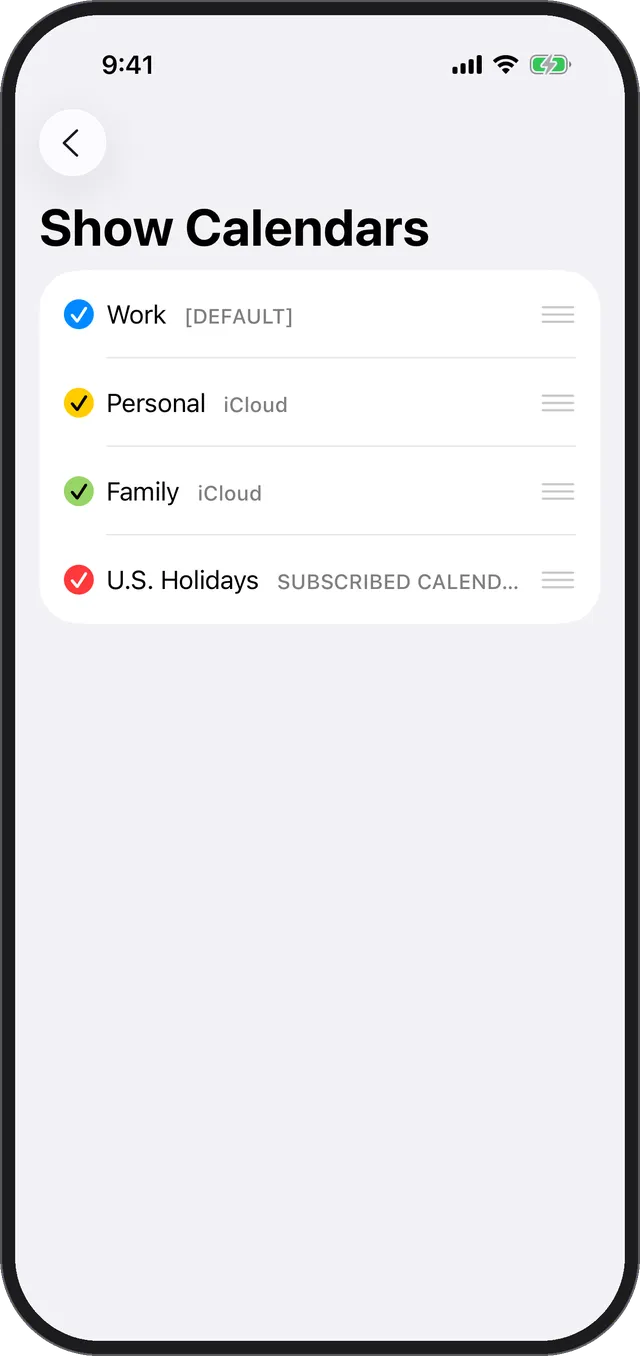
In Calenn, open Settings → [Show Calendars] and turn that calendar on
That’s all it takes for your Google events to appear in Calenn.
Sync across devices
- iPhones signed in with the same Apple ID sync automatically through the standard calendar.
- Your events sync with your PC through the cloud, so you can add them on your phone and review or edit them on a computer.
- When you switch phones, signing in with the same Apple ID brings your events across automatically.
If older events are missing
- On your iPhone, go to [Settings] → [Apps] → [Calendar] → [Sync] and choose All Events. Depending on the sync range set for the standard calendar, events older than a month may not have been fetched.