Calenn
Delete an event
Delete an event by tapping or long-pressing it, and undo if needed.
There are two ways to delete an event:
Tap the event to open the detail sheet, then tap [Delete]
Press the [Delete] button in the detail sheet.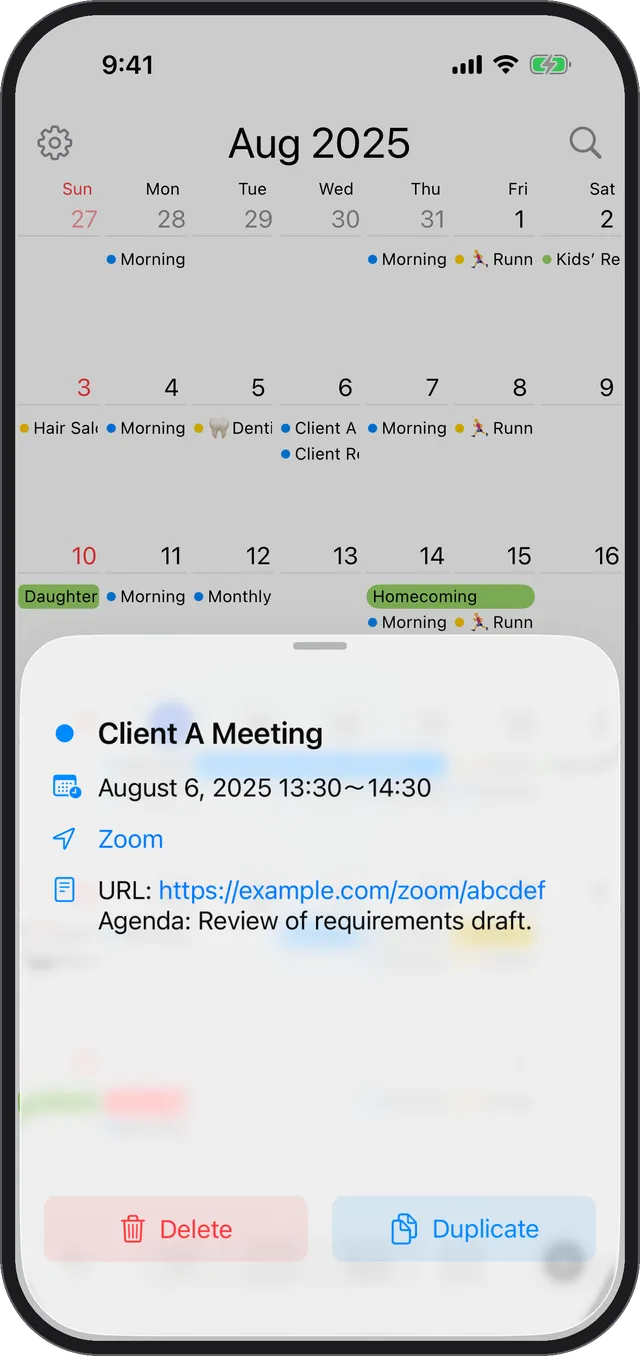
Long-press the event and choose [Delete] from the menu
After long-pressing, tap [Delete] in the menu that appears.
Undo deletion
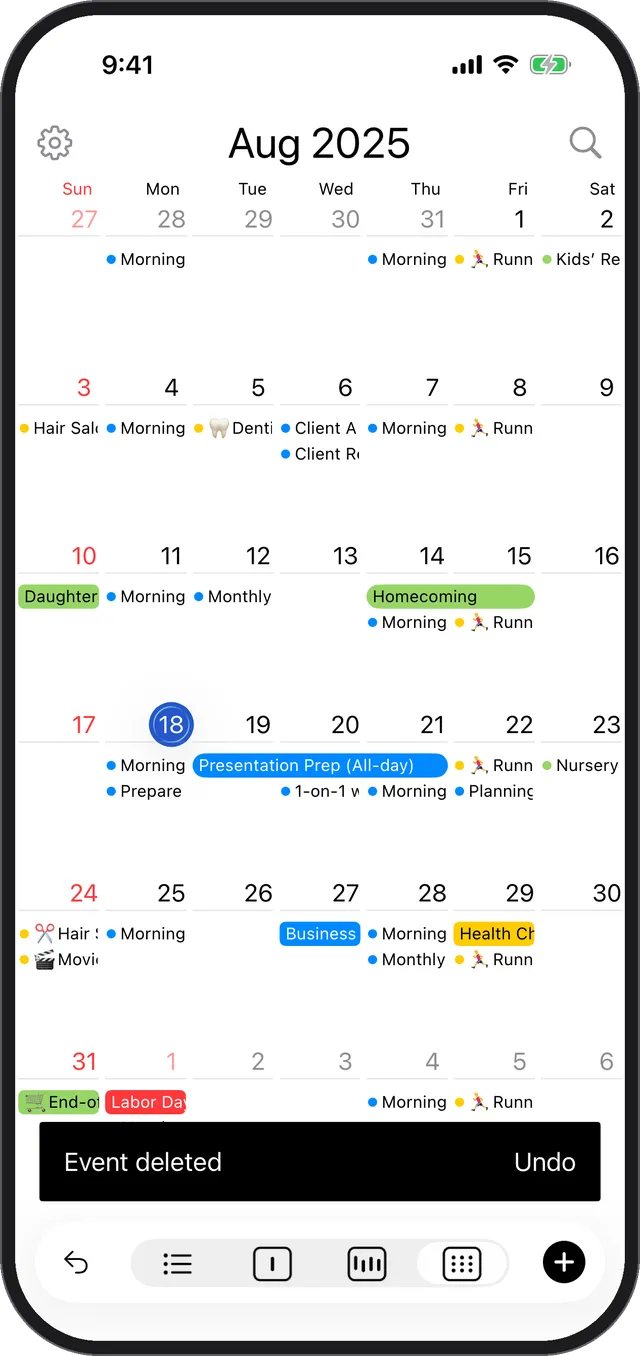
After deleting, a pop-up appears at the bottom of the screen.
If you want to cancel the deletion, tap [Undo] while the pop-up is visible.