 Calenn
Duplicate an event
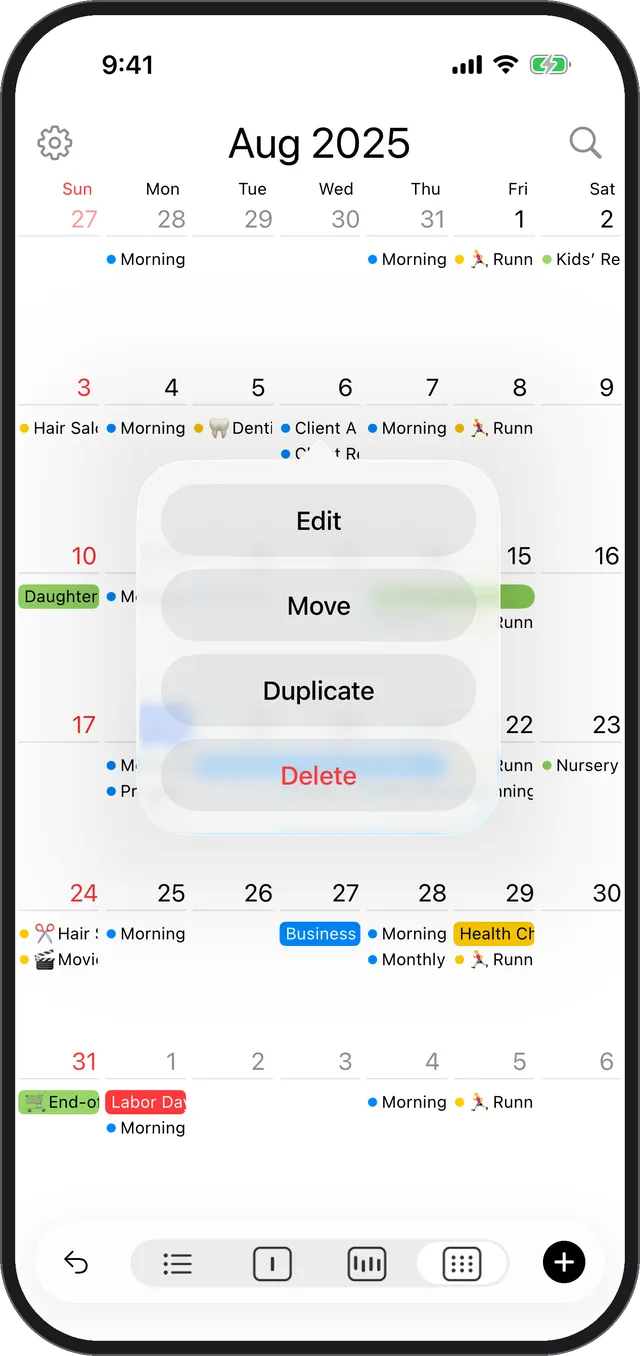
Tap or long-press an event to duplicate it. What happens next depends on your [Move or Duplicate via Drag & Drop] setting and the view you’re in.
There are two ways to duplicate an event:
Tap the event to open the detail sheet, then tap [Duplicate]
Open the original event and press the [Duplicate] button in the detail sheet.Long-press the event and choose [Duplicate] from the menu
After long-pressing, tap [Duplicate] in the menu that appears.
What happens after duplicating
Both methods behave the same way. What comes next depends on your settings and the view you’re in.
When [Move or Duplicate via Drag & Drop] is turned on in Settings
The event switches into drag mode. Drag it and release it at the date and time you want. See Move or duplicate events by dragging for details.When [Move or Duplicate via Drag & Drop] is turned off in Settings
The duplicate sheet opens. Edit the contents as needed, then swipe the sheet down to save automatically — or tap the [Save] button.While you’re in the list view
The duplicate sheet always opens, whatever your [Move or Duplicate via Drag & Drop] setting is.