 Calenn
Move or duplicate events with drag & drop
Choose [Move] or [Duplicate] from the long-press menu to enter drag mode, then drag the event to a new date or time.
To shift an event to another time, you don’t need to open the edit screen.
Long-press the event
A pop-up menu appears with [Edit], [Move], [Duplicate], and [Delete].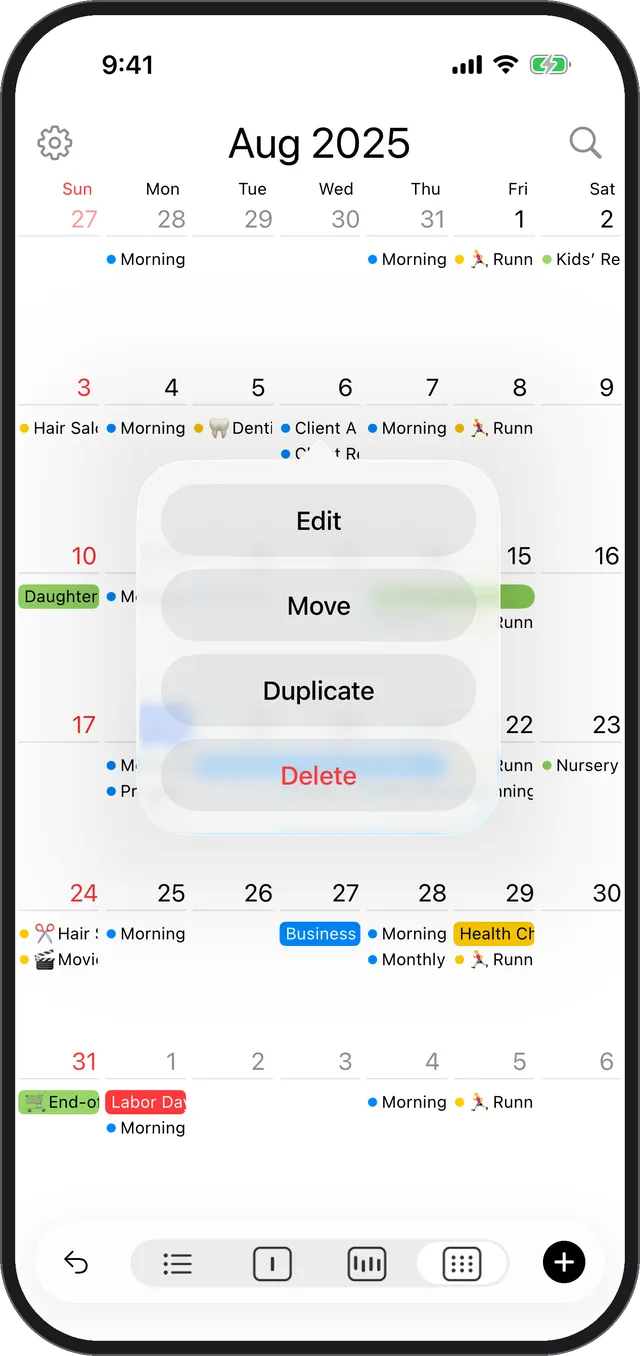
Choose [Move] or [Duplicate]
The event switches into drag mode.Drag the event and release it where you want it
The event moves — or a copy is placed — at the spot you dropped it.Tap [Done]
Your change is applied. Tap [Cancel] if you want to back out.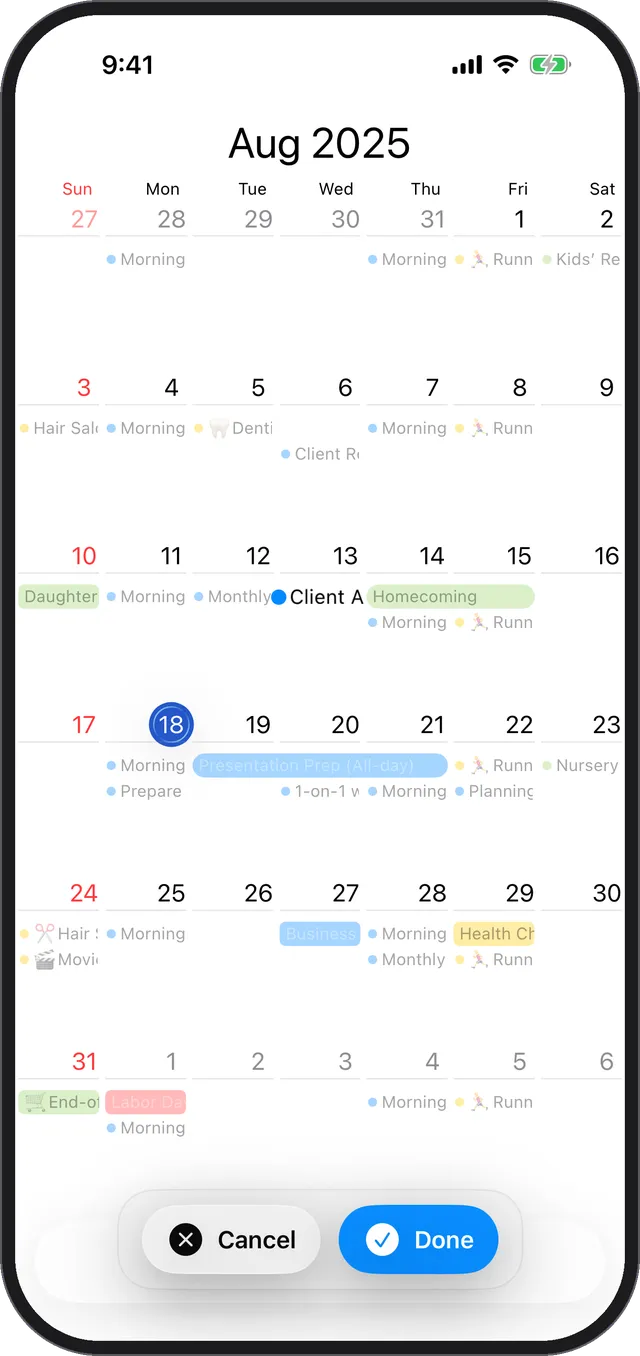
Move vs. duplicate
- [Move]: changes the date and time of the original event.
- [Duplicate]: keeps the original and creates a second event with the same details.
If drag mode doesn’t start
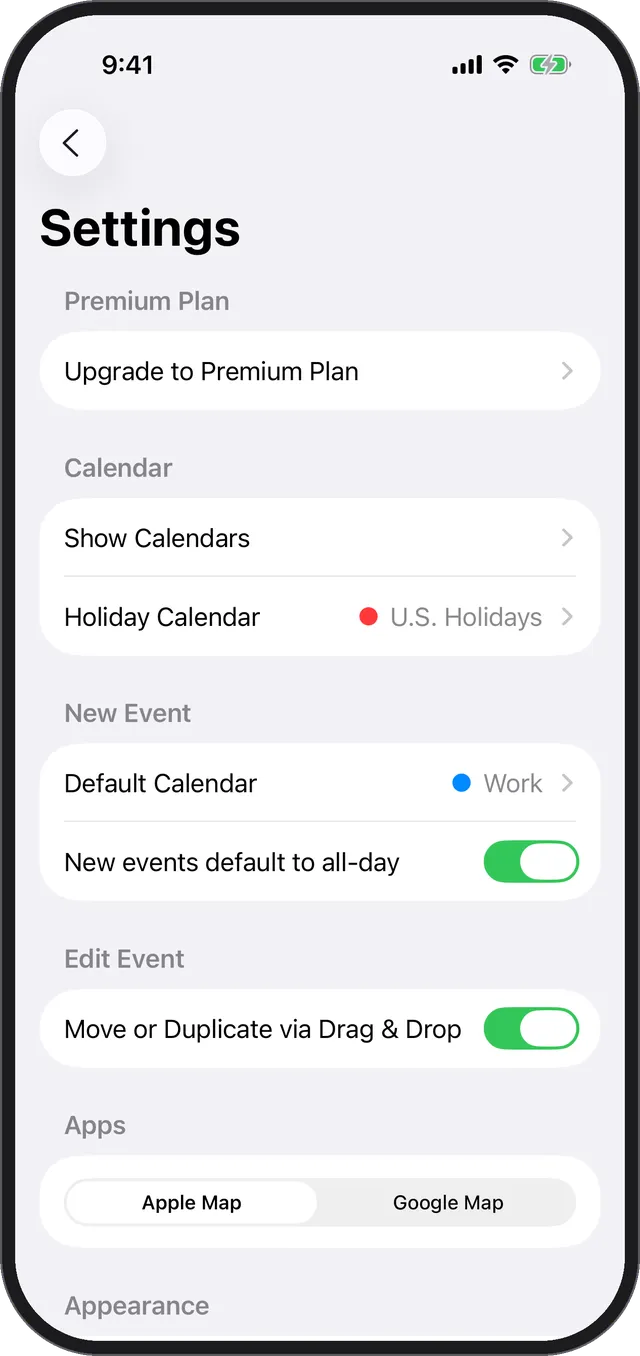
- Moving and duplicating by dragging is available when [Move or Duplicate via Drag & Drop] is turned on in Settings.
- If it’s turned off, or if you’re in the list view, choosing [Duplicate] opens the duplicate sheet instead of starting drag mode.
Related
- To change anything other than the date and time, see Edit an event.